
How to use the Portal.
Every Portal page, explained in one place — for employees, HR admins, finance users and call agents. Use the topic list to jump straight to what you need, or share a direct link like hdebooks.com/portal-help#payroll.
Roles: what you can open depends on your role. Employees see only their own data. Portal Admins see the admin pages. Viewers see the Dashboard, Reports and Call Center only. Full app admins see everything.
My Portal
Dashboard
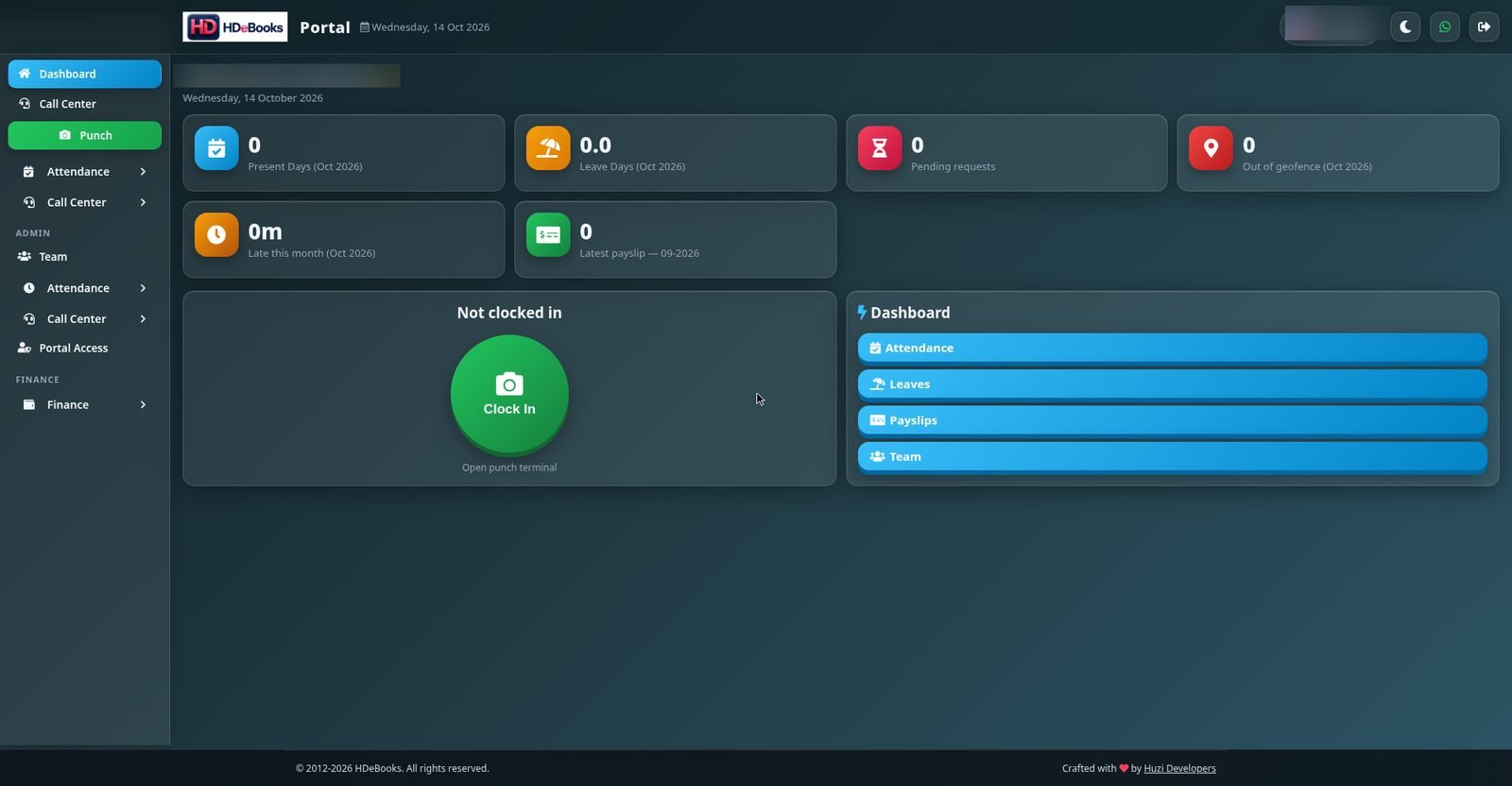
Your home screen after signing in. It shows your own day at a glance: today's punch status, present days, leave days, pending requests and any out-of-geofence punches.
- Clock In / Clock Out — the big terminal button. One tap punches you in or out, with selfie capture and location check.
- Weekly attendance — the week's pattern, so you can spot a missed punch early.
- Late logins — who arrived late today (admins see the whole team).
- Leave balances — how much leave you still have.
- Call Center summary — today's leads, calls and follow-ups, for agents.
My Attendance
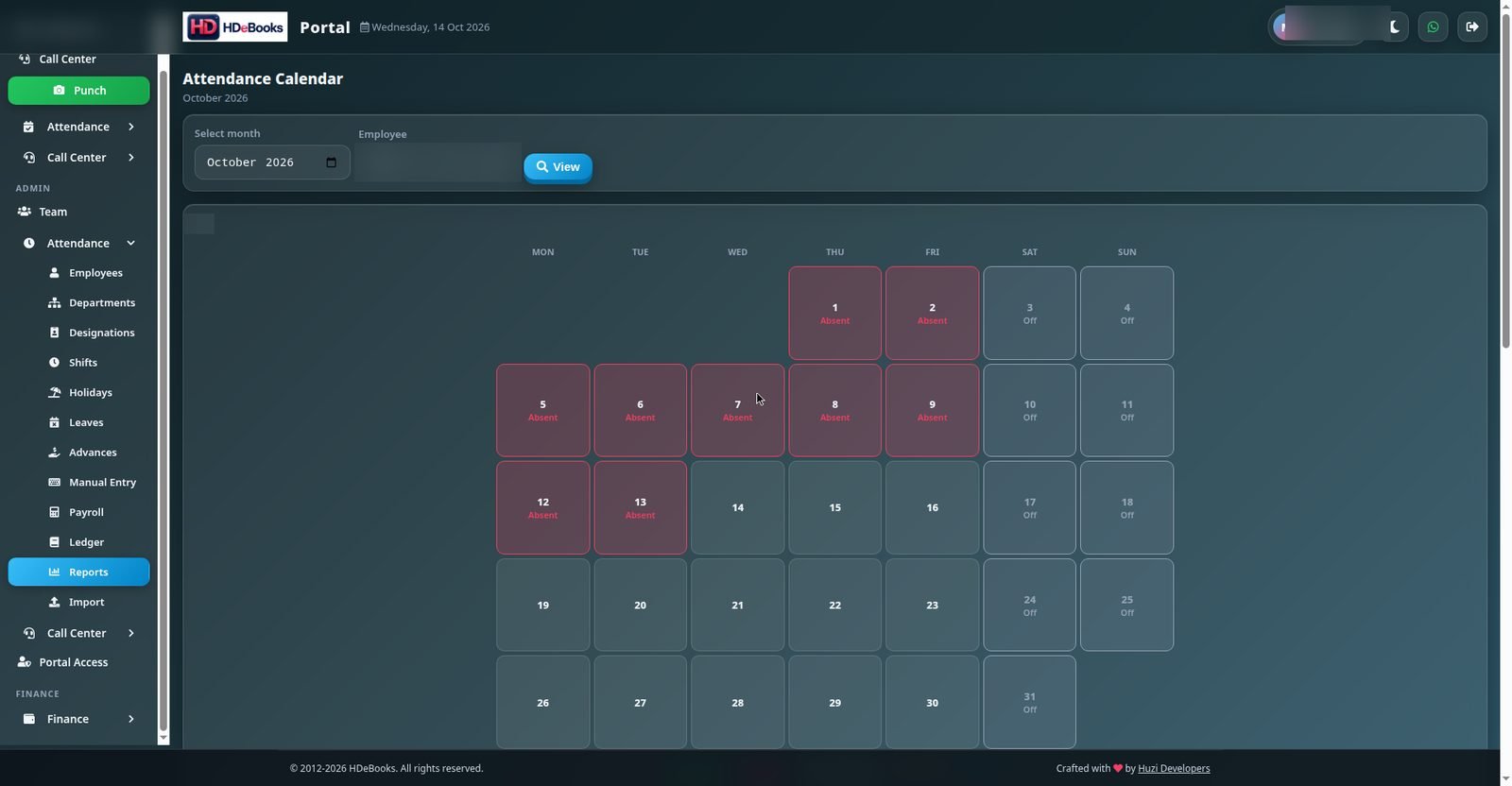
Your personal attendance calendar. Each day shows your clock-in and clock-out times, late minutes in amber and overtime in blue.
- Green — on time. Amber — late (late minutes shown). Red — absent. Grey — off day.
- Overnight shifts: a clock-out before 6 AM belongs to the previous day's shift. If you work 6 PM to 3 AM, the 3 AM out appears on the earlier day.
- If a day looks wrong (missing punch), tell your admin — punches cannot be edited directly; admins fix days with manual attendance.
Team
The team roster: everyone's daily Present / Absent status on one screen, with department and designation. Use it to see who is in today without asking around.
Payslips
Your monthly payslips, published after each payroll run. Open any month to see basic salary, allowances, deductions (absent, late, advances) and net pay. Payslips can be opened and downloaded — no HR visit needed.
My Leaves
Request leave and track it here. Pick your dates, the leave type and a reason, then submit. Your remaining balance is shown before you apply.
- Pending — waiting for admin approval. Approved — confirmed, and it will not count as absent. Rejected — not granted.
- Approved leave never counts as absent in attendance or payroll.
HR Administration
Employees
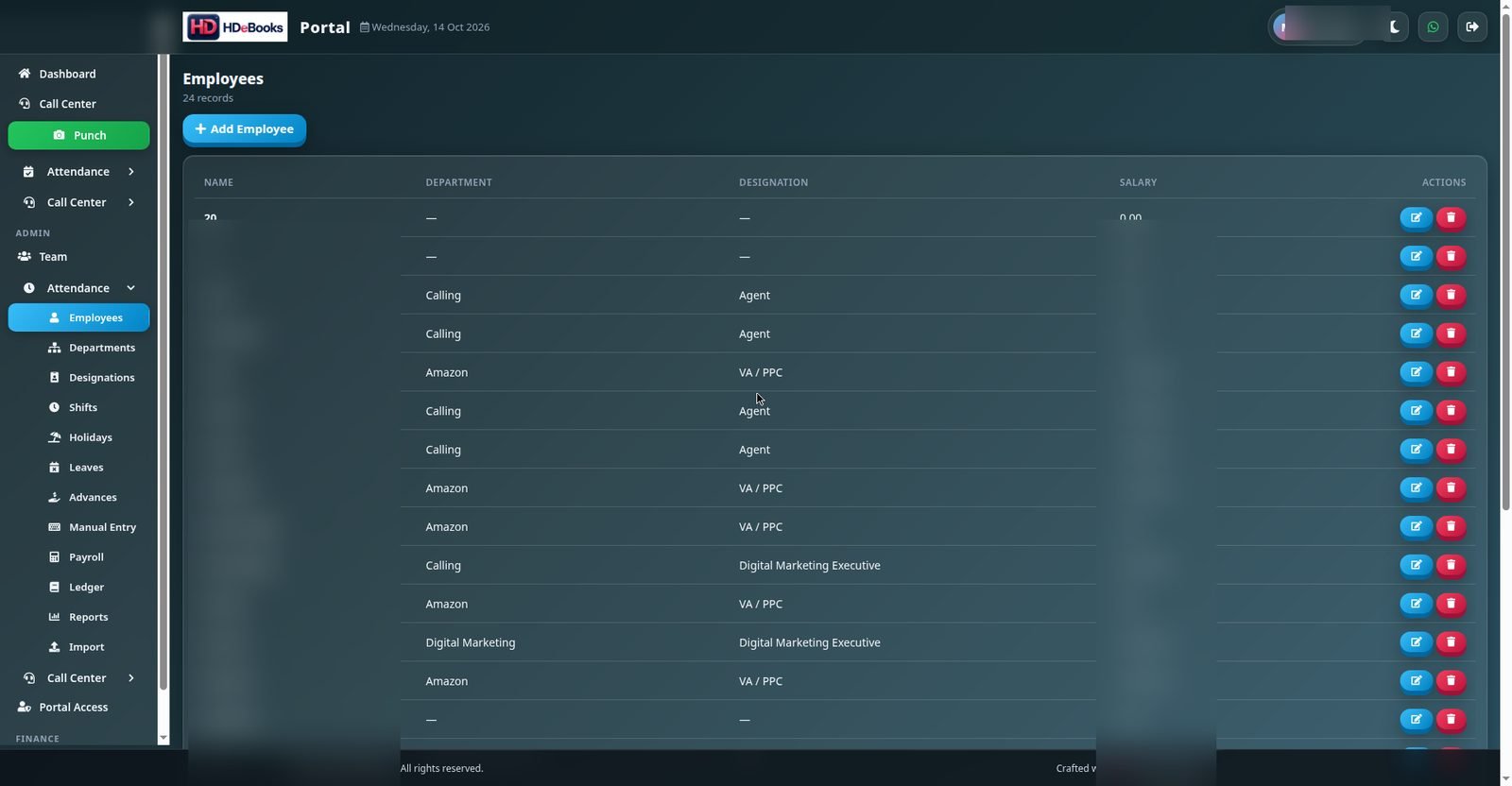
Admin → Employees lists all staff with employee code (e.g. EMP-0006), department, designation and salary. To add an employee, click Add Employee, pick the user from the dropdown, assign a department and designation, and save. The employee then appears in attendance, payroll and reports.
Departments
Group employees into departments (e.g. Calling, HR, Digital Marketing). Each department can have its own shift, which its employees follow.
Designations
Job titles such as Agent, Manager or Executive. Designations are assigned to employees on the Employees page.
Shifts
Set start time, end time and break window for each shift. An employee's shift comes from their department; if the department has no shift, the company default shift applies. An employee with no shift gets no late calculation.
Holidays
Add company holidays here. Holidays are never deducted from pay and never count as absent.
Leaves (Admin)
Review every leave request in one list. Approve or reject each request. Approved leave does not count as absent; rejected leave leaves the day to normal attendance rules.
Advances
Record salary advances given to employees. Advances are recovered automatically through payroll deductions — record them once and payroll handles the rest.
Manual Attendance
Add attendance for a day when an employee forgot to punch or the device was down. Select the employee, date, time in and time out. Manual entries are marked separately from device punches. Manual entry is refused if the employee already has punches that day — it cannot overwrite existing records.
Payroll
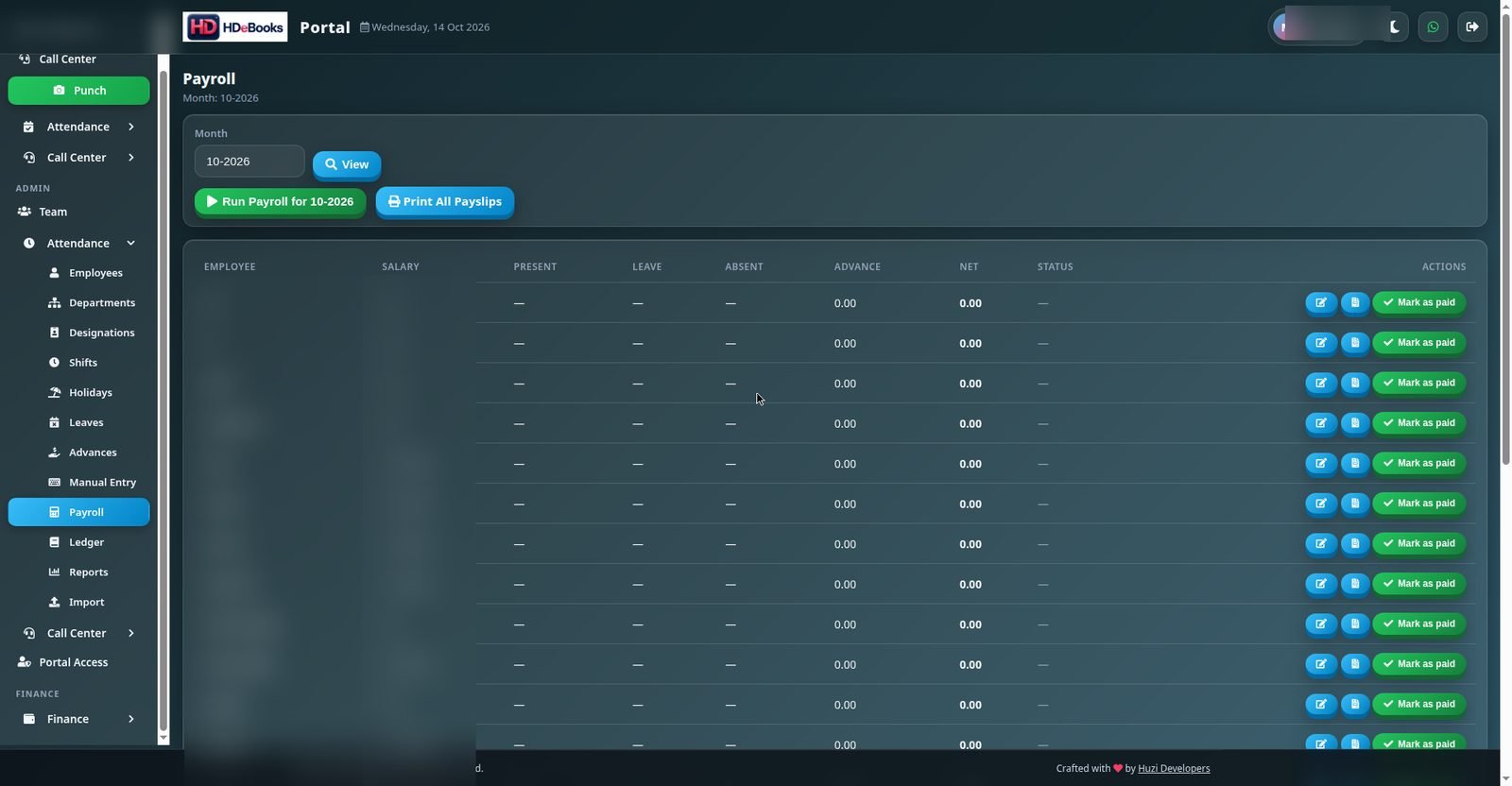
Admin → Payroll generates the monthly payroll table. Select the month and every employee's present, leave, absent, advance and net pay is computed in one table.
- Working days = days in month − off days − holidays.
- Daily rate = basic salary ÷ working days.
- Absent deduction = absent days × daily rate.
- Late deduction depends on the Late Deduction Mode in Settings: half-day per late, per-minute, or fixed slab (e.g. every 3 lates = a fixed amount).
- Overtime is paid at the overtime multiplier on the shift's overtime minutes.
- Advance recovery — outstanding advances are deducted automatically.
- Grace period is never deducted: an employee is marked late only after shift start + grace, and late minutes exclude grace.
After verifying the figures, click Mark Paid on a row. Use Print Payslip for one employee or Print All Payslips for the whole month.
Employee Ledger
Each employee's full financial history — salary, advances, deductions and payments — in one running ledger. Pick the employee and a date range to review or print it.
Reports
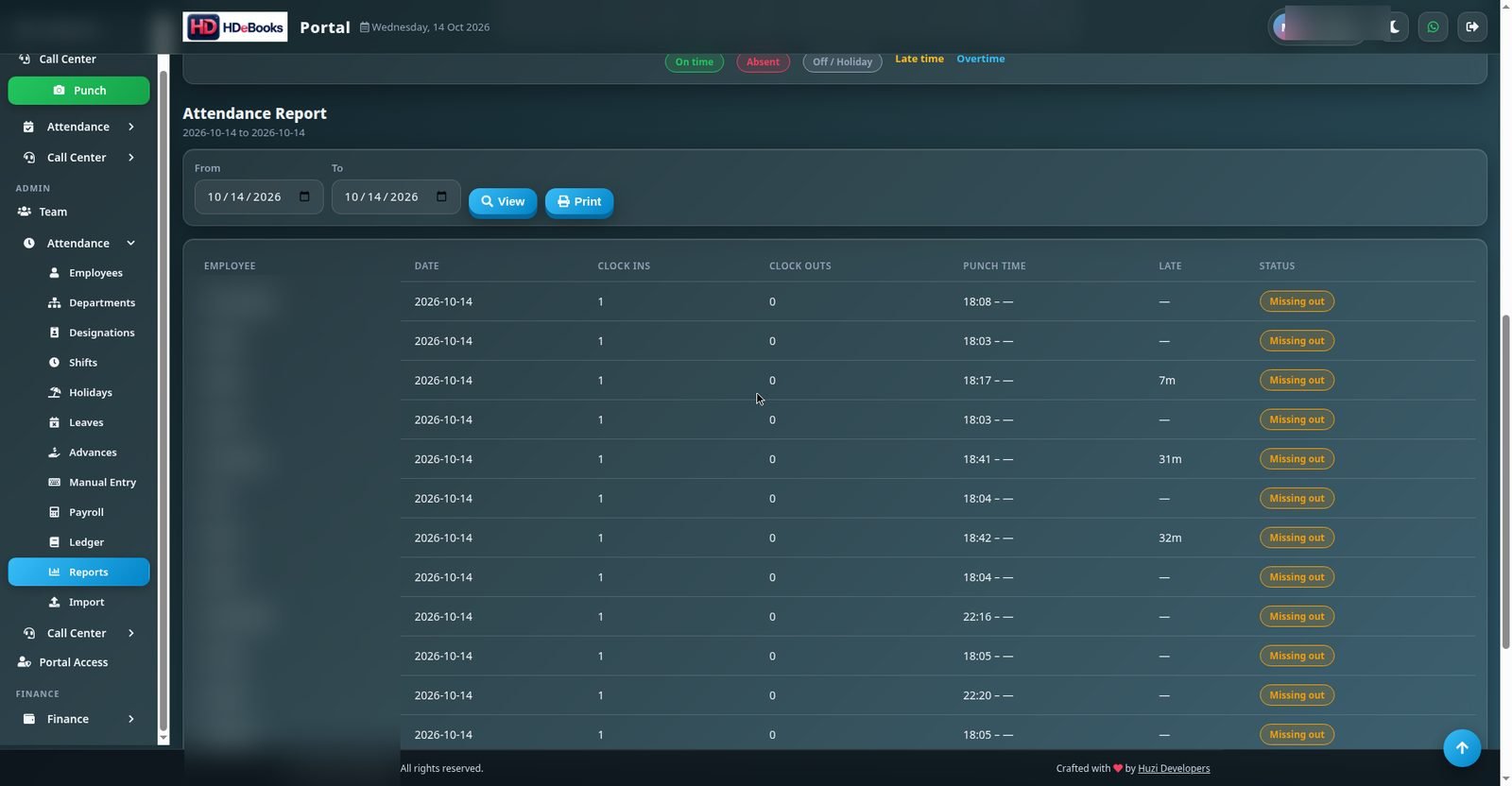
Admin → Reports has two parts: the attendance calendar on top and the report table below.
- Attendance calendar: pick a month and an employee. Each day shows in/out times, late minutes in amber and overtime in blue.
- Report table: per-employee, per-day records for the selected date range. From and To default to today. Columns include clock-ins, clock-outs, punch time (first in – last out), late minutes and status (Complete / Missing in / Missing out / Absent).
- Overnight shifts: a clock-out before 6 AM belongs to the previous day's shift, so an overnight worker's absent day is not misread.
- Export to CSV, Excel or PDF, or print directly.
Import (ZKTeco)
Admin → Import uploads attendance from a ZKTeco device export (CSV). A preview shows how rows will be interpreted before you confirm. Overnight clock-outs (e.g. 3 AM) are paired with the previous day's clock-in automatically. Rows that cannot be read are reported or skipped with a reason — they never silently corrupt the data.
Settings
Admin → Settings holds module-wide configuration:
- Grace period (minutes) — arrivals within this long after shift start are not marked late.
- Standard shift hours — default hours used for overtime math.
- Overtime multiplier — overtime pay rate.
- Geofence — latitude, longitude and radius for punch location checks.
- Allowed IP subnets — corporate network ranges.
- Late deduction mode — half-day / per-minute / fixed slab (see Payroll).
- Weekend days — which days are off.
Some sensitive settings (grace period, geofence, IP subnets, overtime multiplier) are editable only by real app admins. Portal admins can see the values but cannot change them.
Portal Access
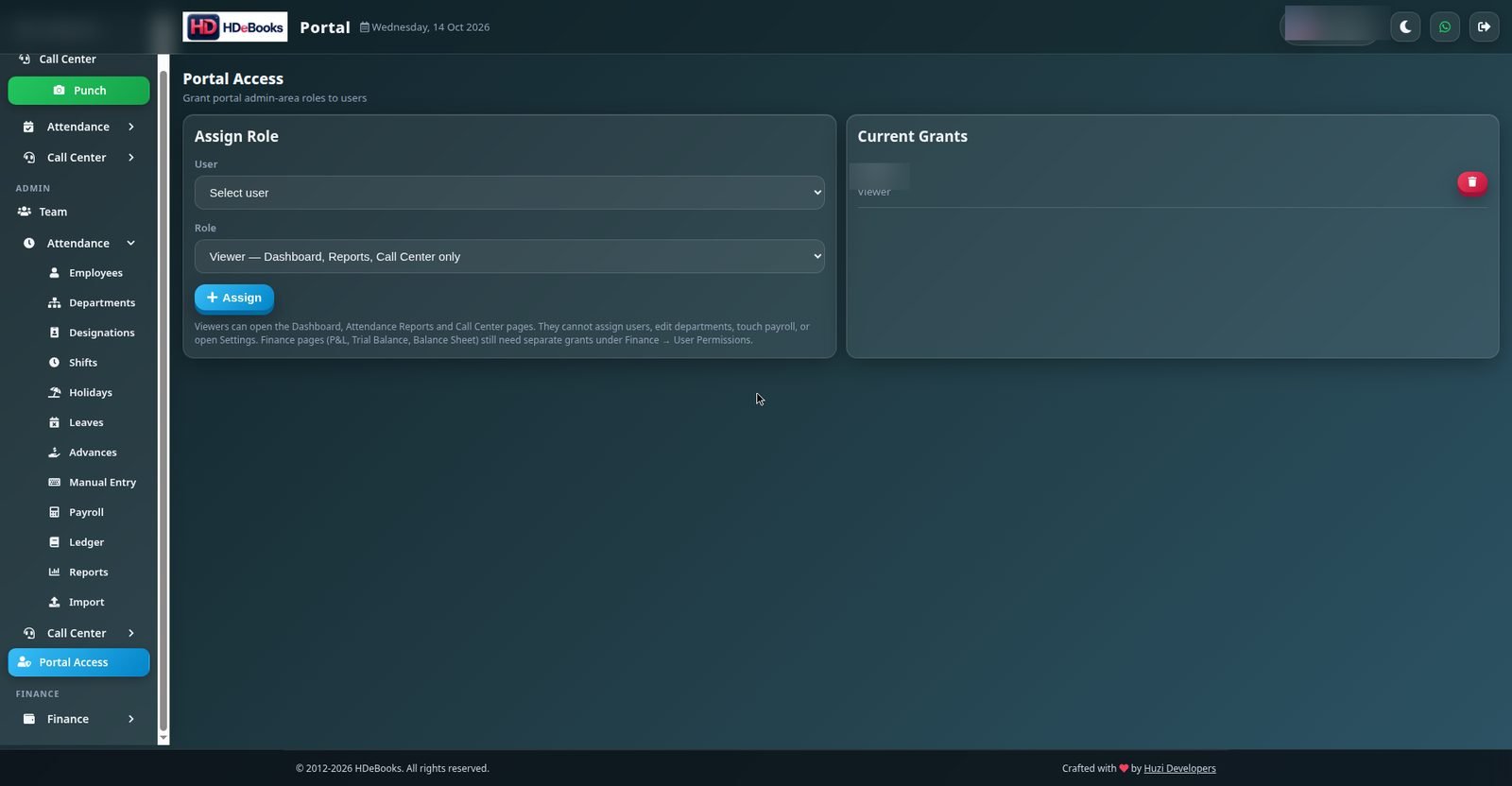
Admin → Portal Access assigns Portal roles:
- Admin — full Portal admin power.
- Viewer — Dashboard, Attendance Reports and Call Center pages only. No employees, departments, payroll, settings, finance or permissions.
User Permissions
Admin → User Permissions (under Finance) grants finance capabilities per user. Select a user, tick the capabilities and save.
- Privilege rule: you can only grant capabilities you hold yourself. Greyed-out boxes are ones you do not have — they are disabled and will not be saved.
- Full app admins can grant everything.
- Saving a user's page only changes the capabilities you can grant; grants given by someone else (e.g. P&L from a full admin) are left untouched.
Finance
Expenses
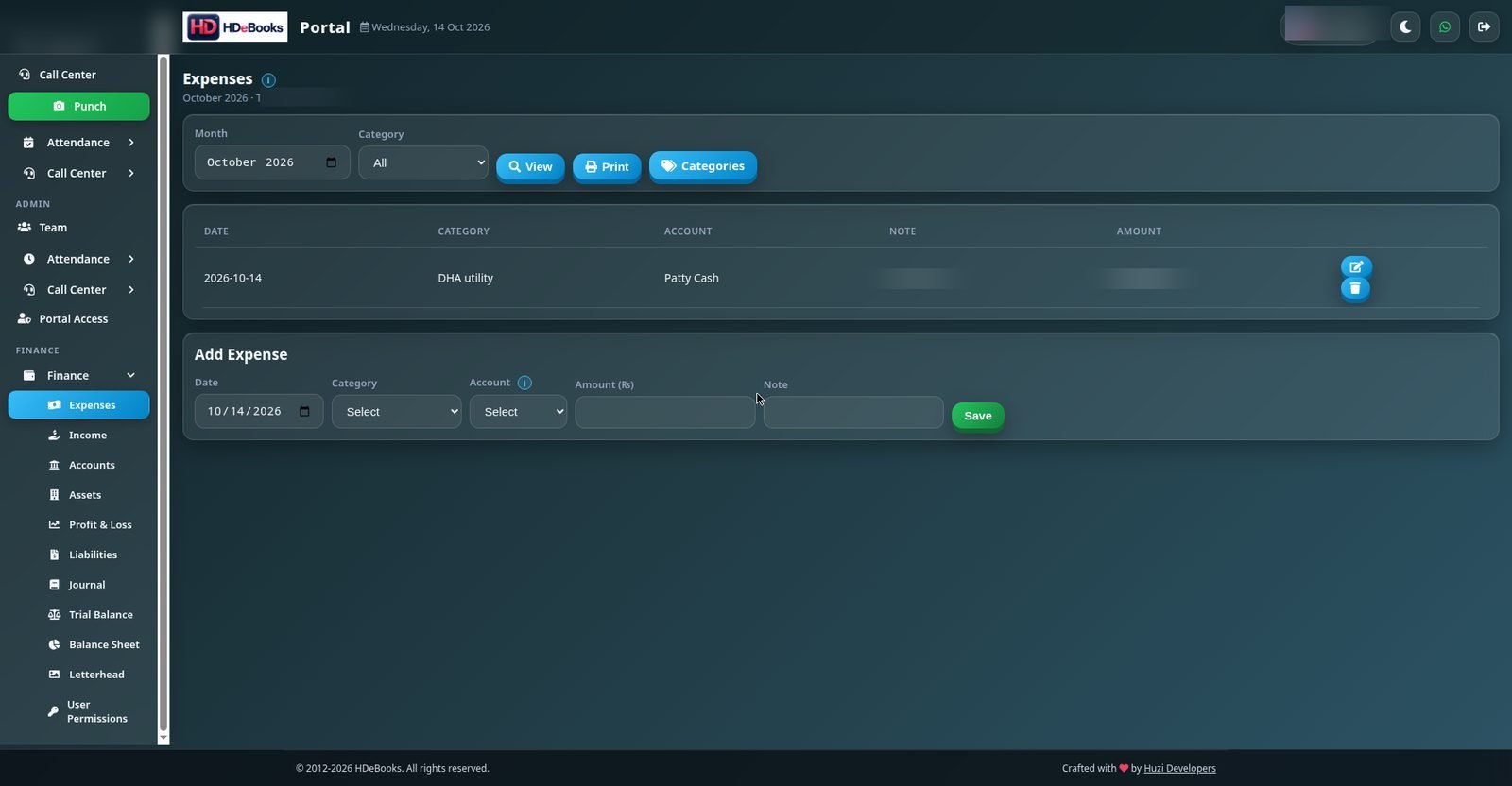
Record money going out. Fill in the date, account, category, amount and a note. Use the info icon next to any field for a description. Categories can be edited inline, and each expense is tied to an account so balances stay correct.
Income
Record money coming in — date, account, category, amount and note. Categories can be marked as Capital contribution (e.g. Owner's Capital). Capital deposits increase the account balance but are excluded from P&L income because they are equity, not earnings.
Tip: clicking Deposit on an Accounts row jumps here with that account already selected.
Accounts
Bank and cash accounts. Each row shows the current balance. Click Deposit on an account row to jump to the Income page with that account pre-selected, or add and edit accounts as the business grows.
Assets
Track company assets — equipment, vehicles and other valuables — with their recorded values, so the balance sheet always reflects what the company owns.
Profit & Loss
Income minus expenses for the selected period. Capital contributions are excluded from income. A positive net means profit; a negative net means a loss. Example: an owner deposits 100,000 as capital (cash 100,000, P&L income 0), then 25,000 rent is spent (cash 75,000, P&L shows expenses 25,000, net −25,000).
Liabilities
What the company owes — loans, payables and other obligations. Liabilities feed the balance sheet.
Journal
Double-entry journal records: every movement is recorded as balanced debits and credits, so the books always tie out.
Chart of Accounts
The account and category structure behind all finance pages. Categories created here (or inline on Expenses / Income) appear in the dropdowns when recording transactions, and the capital-contribution flag lives on income categories.
Trial Balance
Every account's debits and credits, side by side. The two columns must balance — if they do not, a journal entry is missing or mistyped. A 403 here means you have not been granted the Trial Balance capability (see User Permissions).
Balance Sheet
The company's position at a point in time: Assets = Liabilities + Equity. Capital contributions appear in equity here, which is why they raise the account balance without touching P&L income. A 403 here means you have not been granted the Balance Sheet capability.
Letterhead
Upload the company logo used on printed documents — invoices, payslips and reports. The logo is stored under /upload/portal/ and appears at the top of every printed page.
Call Center
Call Center Dashboard
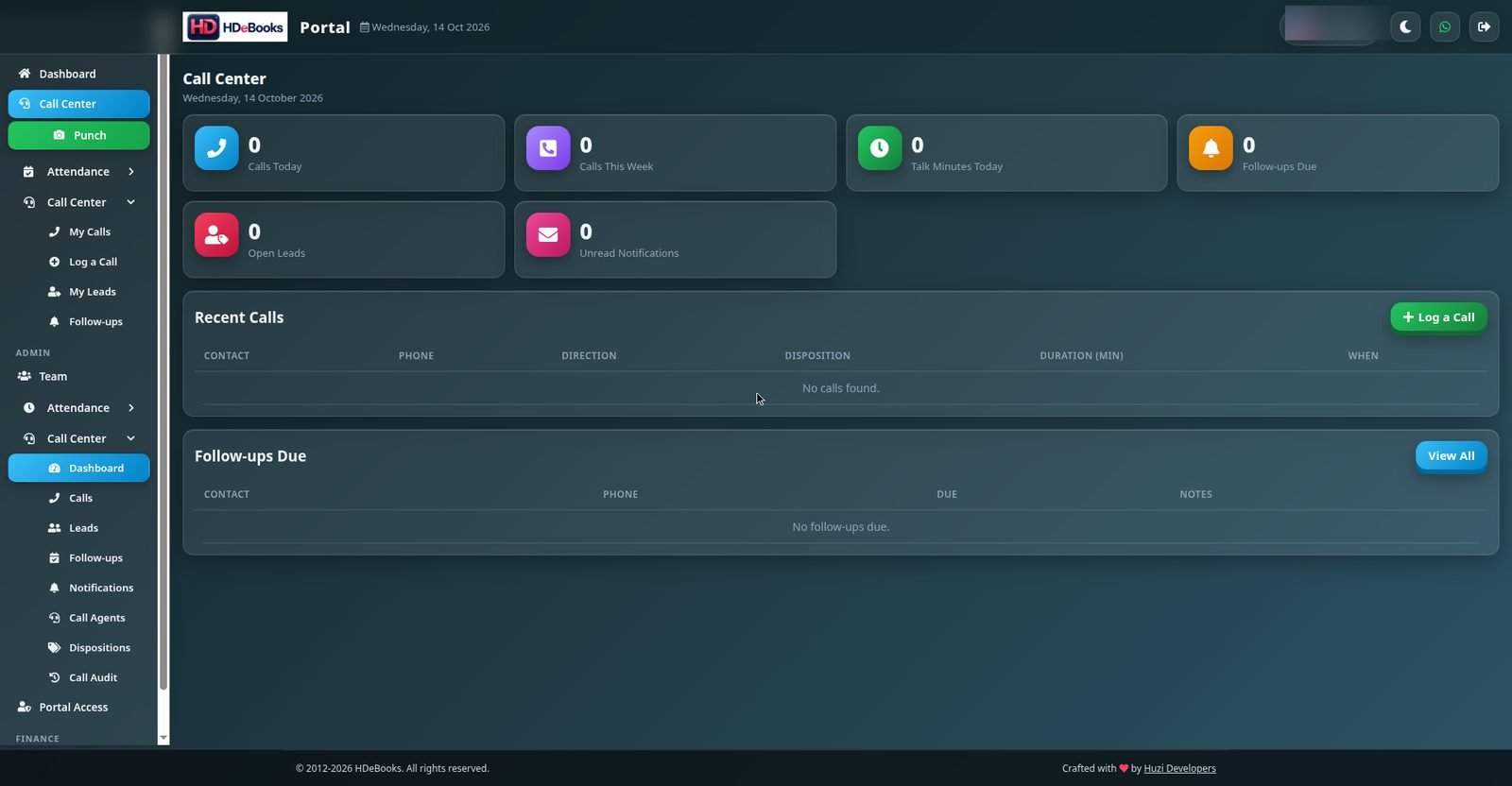
The call-center home screen: total leads, follow-ups due, call stats and today's lead list. Agents start here; admins see the whole team's numbers.
Calls
Use Log Call to record a new call: pick the lead, log the outcome (disposition) and notes. Each call is linked to its lead, so the full conversation history stays visible on the lead.
Leads
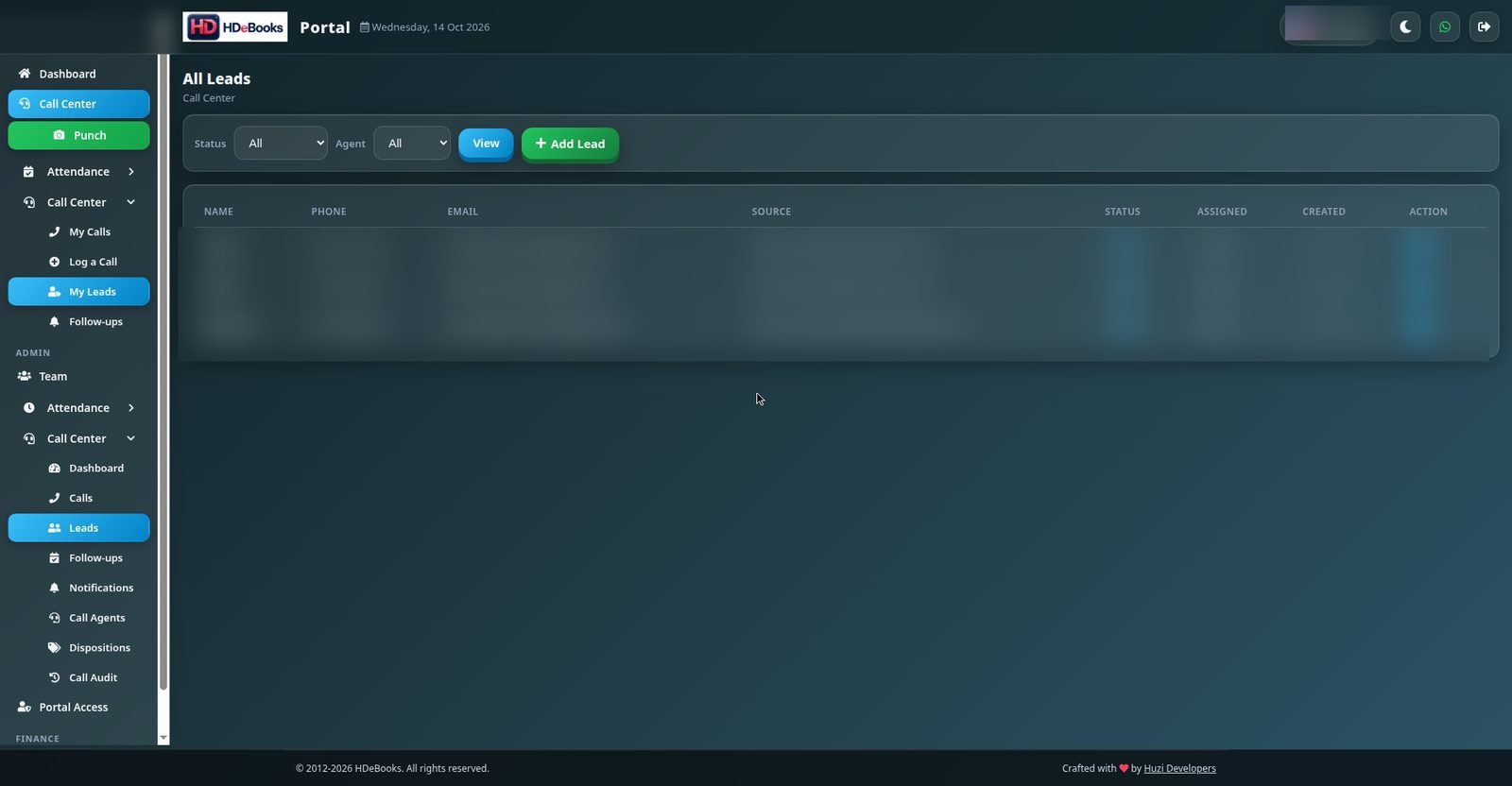
All leads with name, phone, source, status and follow-up date. Use the ⋮ Action menu on a row to:
- Edit — update lead details.
- Log Call — record a call (the lead is pre-filled).
- Mark as — change status: New / Contacted / Qualified / Won / Lost.
- Delete — remove the lead, with confirmation.
Follow-ups
Leads with a scheduled follow-up date. Work the list top-down and mark each follow-up Done after contacting the lead. Overdue follow-ups are flagged so nothing slips.
Notifications
System notifications for the call center — new leads, follow-up reminders and other events that need attention.
Call Agents
Admins manage the call-agent roster here: who can take calls and work leads. Agents see only their own leads and calls; admins see everything.
Dispositions
Admins manage the disposition reasons agents pick when logging a call (e.g. Interested, Not Interested, Callback, No Answer). Keep the list short and consistent so reports stay meaningful.
Call Audit
The full audit trail of call-center activity — who logged what, when, and what changed. Admins use it to review work and resolve disputes.
Still stuck?
Message us on WhatsApp or use the contact page — tell us which help topic you were on and what went wrong.